SUPPORT
桌寵遇到問題?
從這裡開始排查。
查看下方的常見問題與處理方式,或透過公開問題回報管道聯絡我們。
SUPPORT
桌宠遇到问题?
从这里开始排查。
查看下方的常见问题与处理方式,或通过公开问题反馈渠道联系我们。
SUPPORT
Need help with your desktop pet?
Start here.
Find common issues and fixes below, or contact us through the public issue-reporting channel.
COMMON QUESTIONS
常見問題
桌寵沒有顯示或不小心隱藏了,怎麼辦?
先開啟設定視窗,使用「顯示桌寵」切換鈕確認目前狀態。也可檢查快捷鍵頁籤的顯示/隱藏設定,預設為 F12。
姿勢動畫看起來抖動或走動不自然?
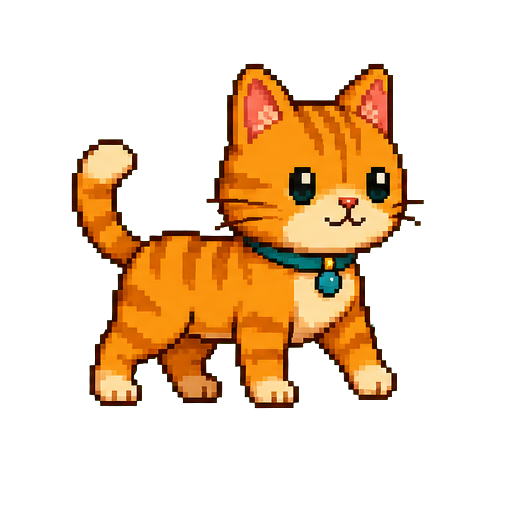
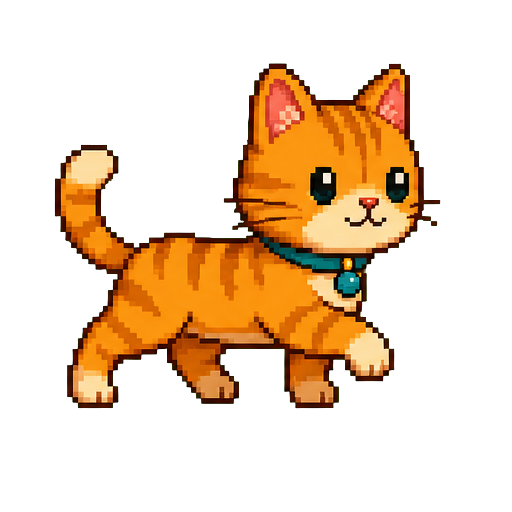
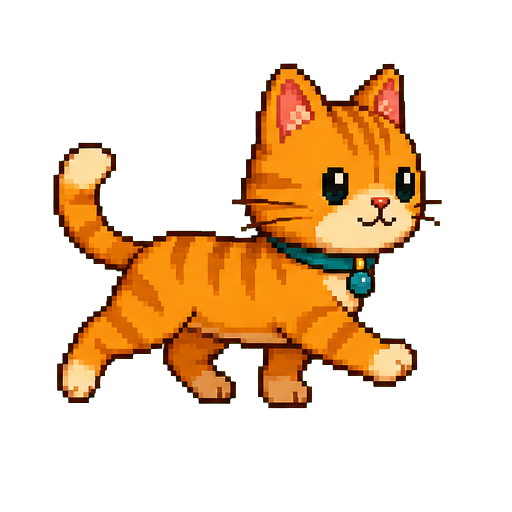
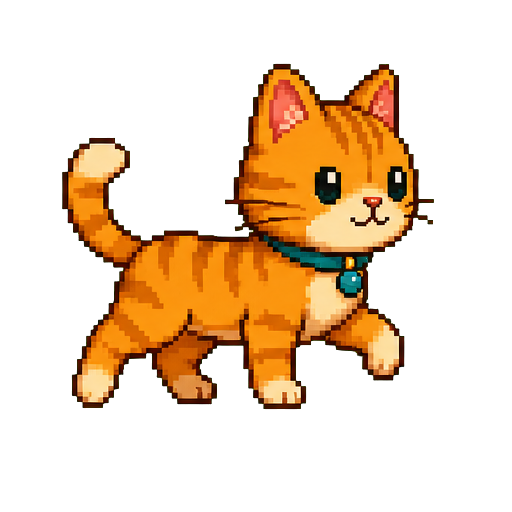
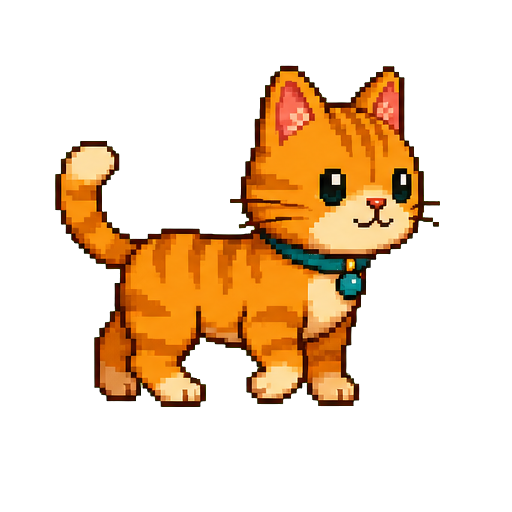
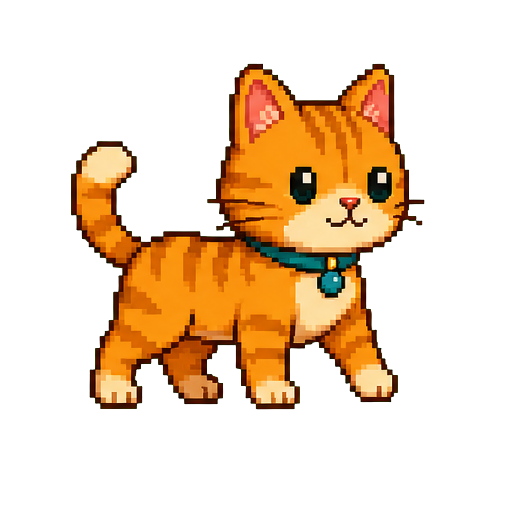
請確認各影格的角色中心點一致。走動素材建議上傳朝右的連續動作,系統會在左行時自動鏡像。示範素材約有 6 張影格,每秒播放約 6 幀;程式可依你實際上傳的影格數或 GIF 自動播放。
提醒、行事曆或計時器沒有出現?
確認提醒已啟用,並檢查時間、上午/下午與週期條件。可用「測試提醒」先確認姿勢、氣泡、音效與全螢幕效果。全螢幕提醒會將桌寵放到提醒畫面指定位置。
如何連接或中斷 Google Calendar?
在行事曆提醒區按下「Google 同步」,預設瀏覽器會開啟登入與授權畫面。成功後,程式會於啟動與每天 00:00 同步一次。選擇「中斷 Google」即可停止後續同步;既有本機提醒不會自動刪除。
Google 登入失敗或無法回到程式?
確認預設瀏覽器可正常登入 Google,且防火牆或安全軟體沒有封鎖 Desktop Pet Studio 的本機 loopback 回呼。不要在問題回報中附上 OAuth 金鑰、授權碼或權杖;這些屬於私人資料。
直播主模式的測試 Bits 沒有播放?
測試不會真的送出斗內,也不必先連接 Twitch 或設定姿勢規則。它會直接使用填入的暱稱、訊息與 Bits 播放內建六幀測試動畫。全螢幕提醒或一般提醒正在顯示時,提醒會優先處理;你可以在姿勢工作台設定正式 Bits 姿勢的播放秒數。
匯入姿勢、音效或工作坊 JSON 失敗?
請確認檔案仍在原始位置、格式符合程式提示,並使用工作坊頁的掃描或匯入功能。創作者可參考程式內「創作者說明」了解 JSON 欄位與 AI 素材模板。
COMMON QUESTIONS
常见问题
桌宠没有显示或不小心隐藏了,怎么办?
先打开设置窗口,使用“显示桌宠”切换钮确认当前状态。也可检查快捷键页签的显示/隐藏设置,默认是 F12。
姿势动画看起来抖动或走动不自然?
请确认各帧的角色中心点一致。走动素材建议上传朝右的连续动作,系统会在左行时自动镜像。示范素材约有 6 帧,每秒播放约 6 帧;程序可依你实际上传的帧数或 GIF 自动播放。
提醒、日历或计时器没有出现?
确认提醒已启用,并检查时间、上午/下午与周期条件。可用“测试提醒”先确认姿势、气泡、音效与全屏效果。全屏提醒会将桌宠放到提醒画面指定位置。
如何连接或断开 Google Calendar?
在日历提醒区按下“Google 同步”,默认浏览器会打开登录与授权画面。成功后,程序会于启动与每天 00:00 同步一次。选择“断开 Google”即可停止后续同步;既有本地提醒不会自动删除。
Google 登录失败或无法回到程序?
确认默认浏览器可正常登录 Google,且防火墙或安全软件没有阻止 Desktop Pet Studio 的本地 loopback 回呼。不要在问题反馈中附上 OAuth 密钥、授权码或令牌;这些属于私人数据。
直播模式的测试 Bits 没有播放?
测试不会真的发送打赏,也无需先连接 Twitch 或设置姿势规则。它会直接使用填入的昵称、消息与 Bits 播放内建六帧测试动画。全屏或一般提醒正在显示时,提醒会优先处理;你可以在姿势工作台设置正式 Bits 姿势的播放秒数。
导入姿势、音效或创意工坊 JSON 失败?
请确认文件仍在原始位置、格式符合程序提示,并使用创意工坊页面的扫描或导入功能。创作者可参考程序内“创作者说明”了解 JSON 字段与 AI 素材模板。
COMMON QUESTIONS
Common questions
My pet is hidden or not showing. What should I do?
Open the settings window and confirm the current state with the Show Pet toggle. You can also check the Show/Hide setting in Hotkeys; F12 is the default.
Why does my pose animation shake or walk unnaturally?
Make sure the character's visual center is consistent in every frame. Upload continuous walking art facing right; the app mirrors it for leftward movement. The default example animations have roughly six frames and play at about six FPS, while the app can play the number of frames in your upload or GIF automatically.
Why did a reminder, calendar event, or timer not appear?
Confirm that the reminder is enabled and recheck its time, AM/PM, and recurrence. Use Test Reminder to verify pose, bubble, sound, and fullscreen behavior. Fullscreen reminders position the pet in the designated reminder area.
How do I connect or disconnect Google Calendar?
Press Google Sync in the calendar reminder area. Your default browser opens the sign-in and consent flow. After success, the app syncs at launch and daily at 00:00. Choose Disconnect Google to stop future sync without deleting existing local reminders.
Google sign-in fails or does not return to the app.
Make sure your default browser can sign in to Google and that your firewall or security software is not blocking Desktop Pet Studio's local loopback callback. Never include OAuth keys, authorization codes, or tokens in a support report; they are private data.
Why did a Streamer Mode test Bits event not play?
A test never sends a real donation and does not require Twitch or any pose rule. It uses the entered viewer name, message, and Bits to play the built-in six-frame test animation. Fullscreen and regular reminders remain the priority while they are active; you can set how long real Bits poses play in Poses.
Why did a pose, sound, or workshop JSON import fail?
Check that the file remains in its original location and follows the format named by the app. Use the workshop page's scan or import action. Creators can use the in-app Creator Guide for JSON fields and AI asset templates.